Preparation
Before you begin: Assuming you wish to reinstall windows, you'll need to get a
USB stick or external drive and create a recovery disk. While this can be done
with any Windows machine, you probably want to just use the existing computer
before wiping it. You can follow the instructions found
here.
Splash Screen
Shut the computer down (do not just reboot), and power it back up. When you see
the red "Dell" screen, press the F12 key to get into the boot menu. (If you
see Windows, it's gone too far. Hold the power down and try again. I suggest
just tapping F12 until the text under the banner changes to "Entering boot
menu".)
Boot Menu
Select the "BIOS Setup" option in the boot menu. You may need to use the arrow
keys to select it.
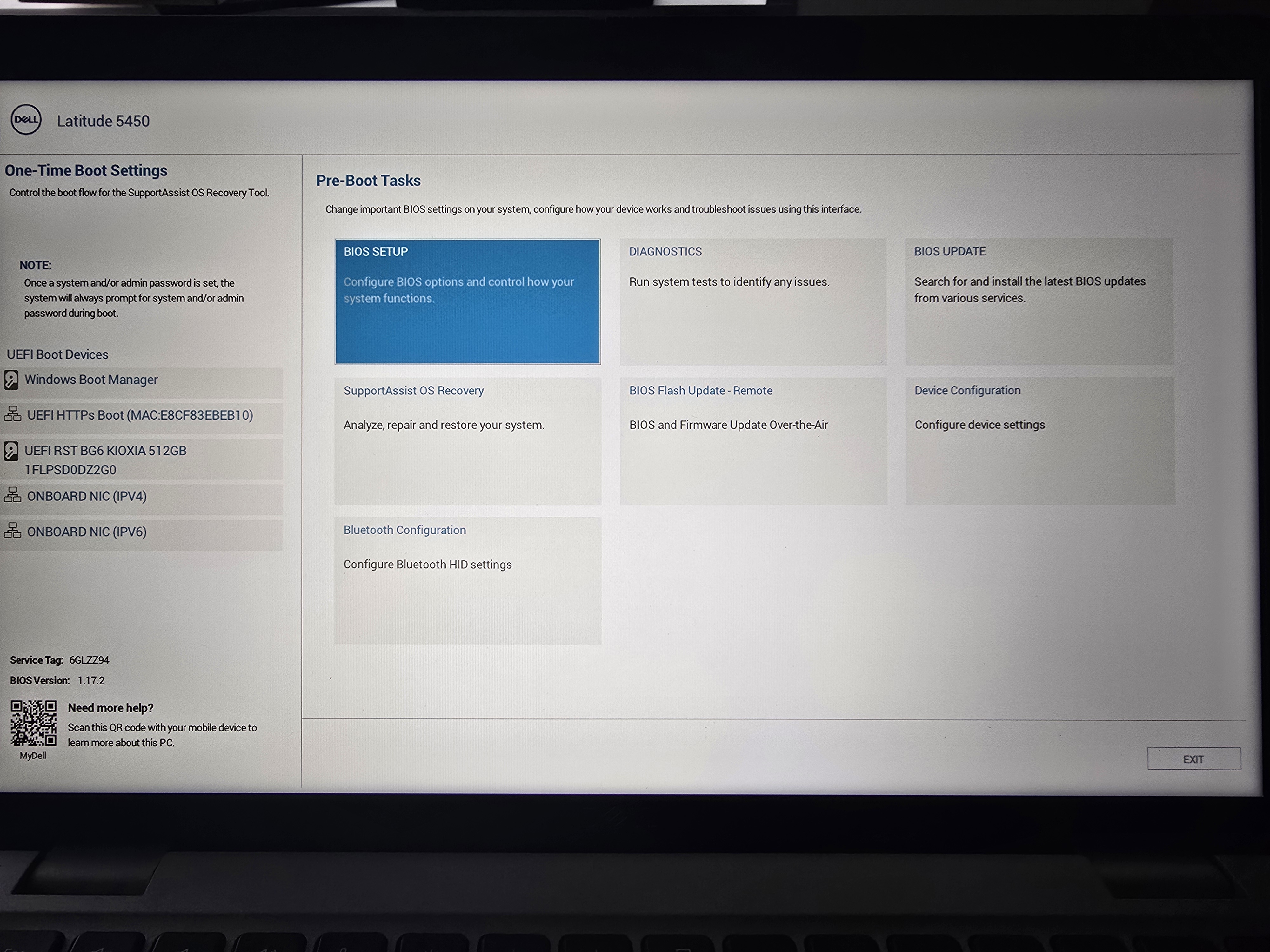
BIOS Menu
Select the "Security" option on the left tab.
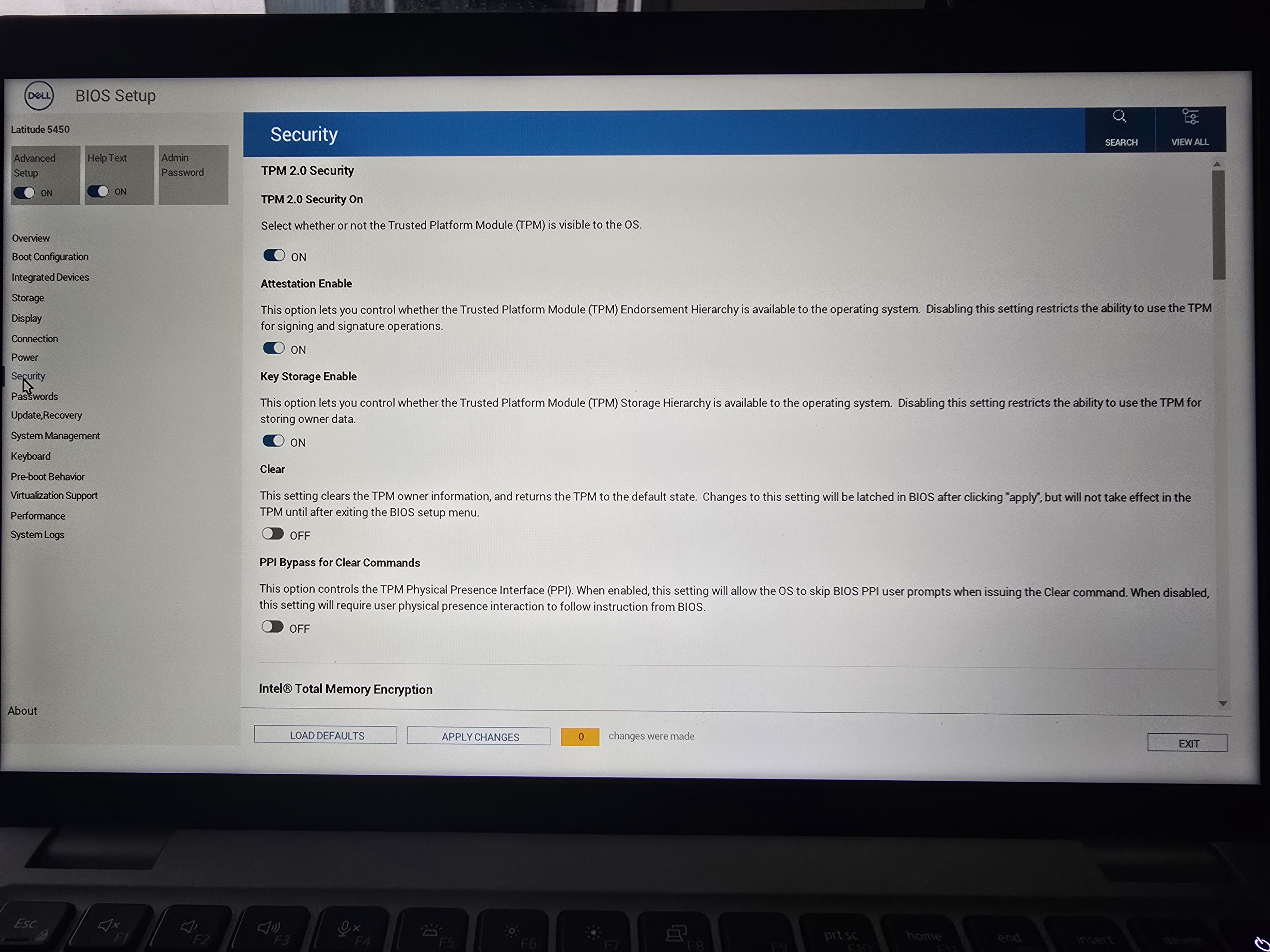
Security Menu
Scroll the security menu down to the "Data Wipe on Next Boot section" and click
the toggle.
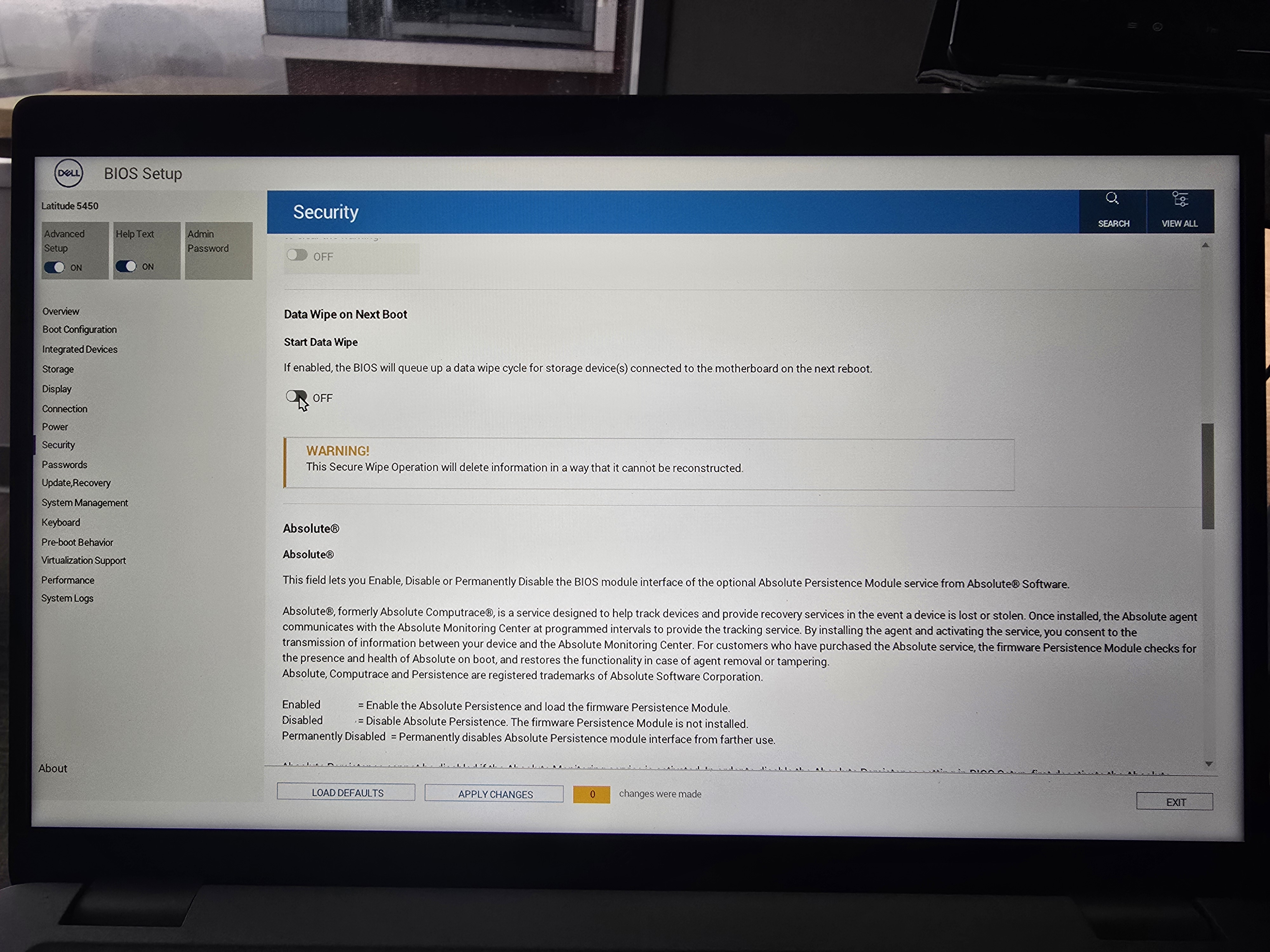
Confirmation
Yes, we'd like to wipe the drive. Click "OK".
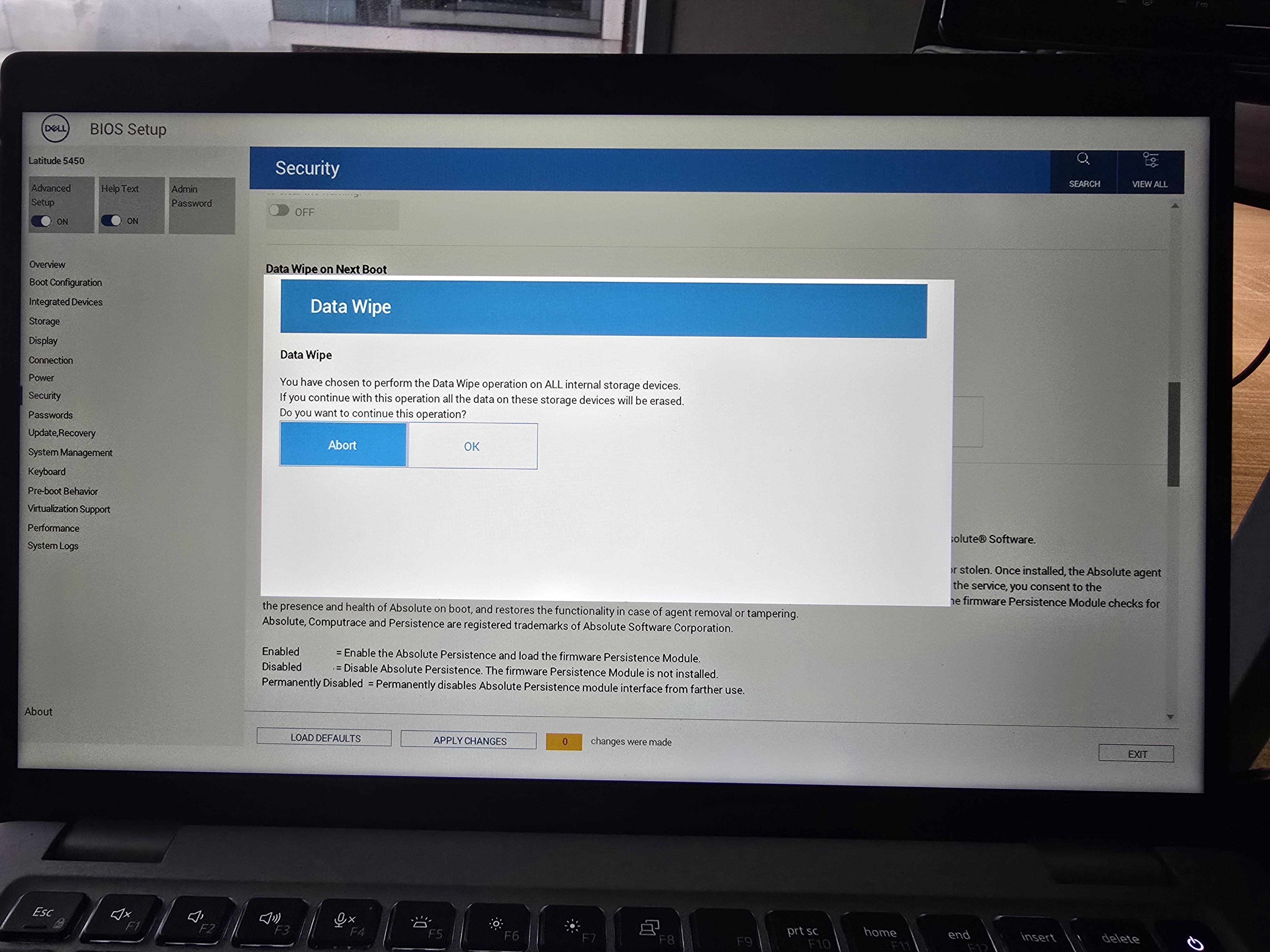
Confirmation: Redux
Yes, we're really most sincerely sure... Click "No".
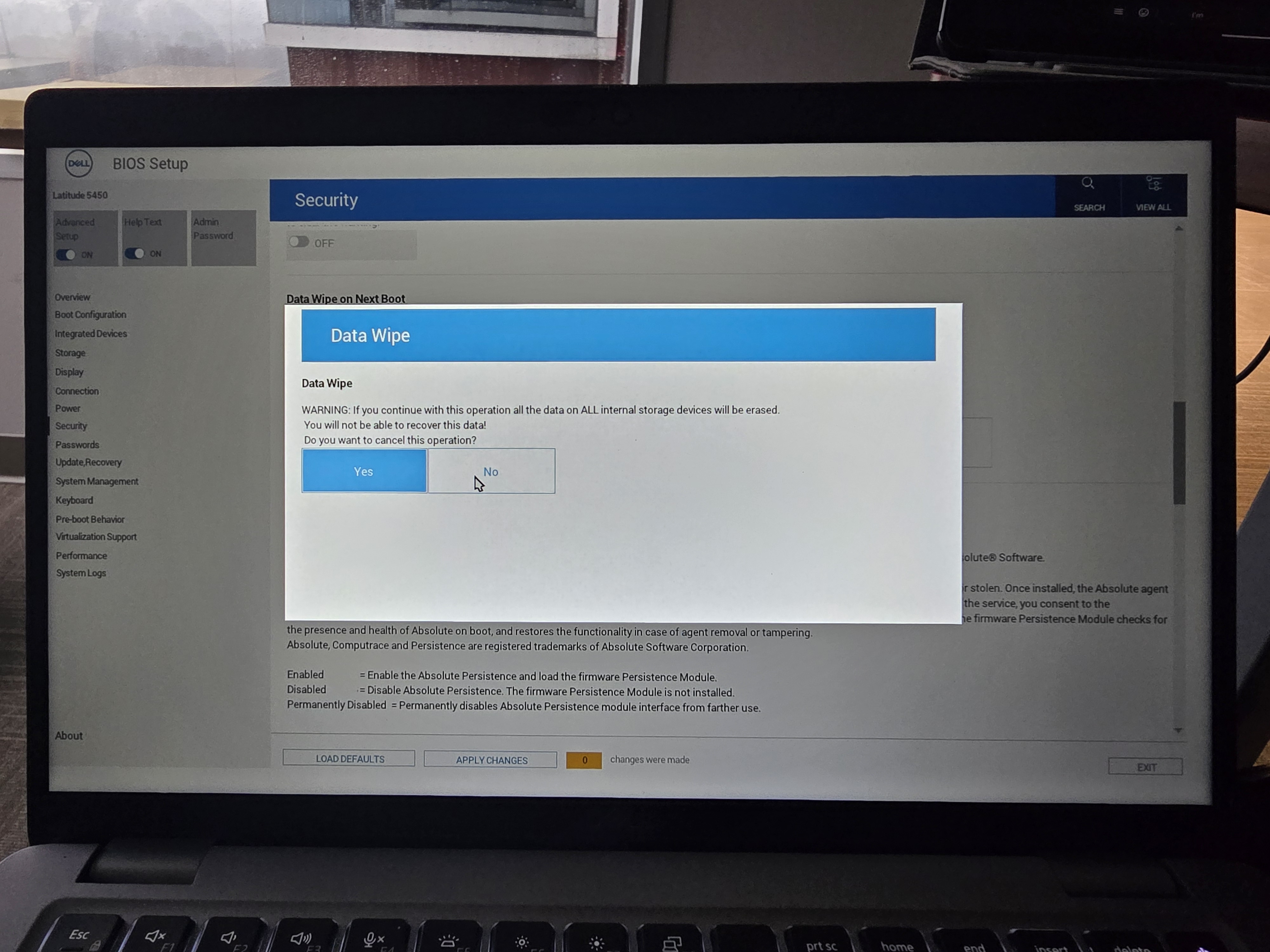
Apply Settings
Click the "Apply settings" button at the bottom.
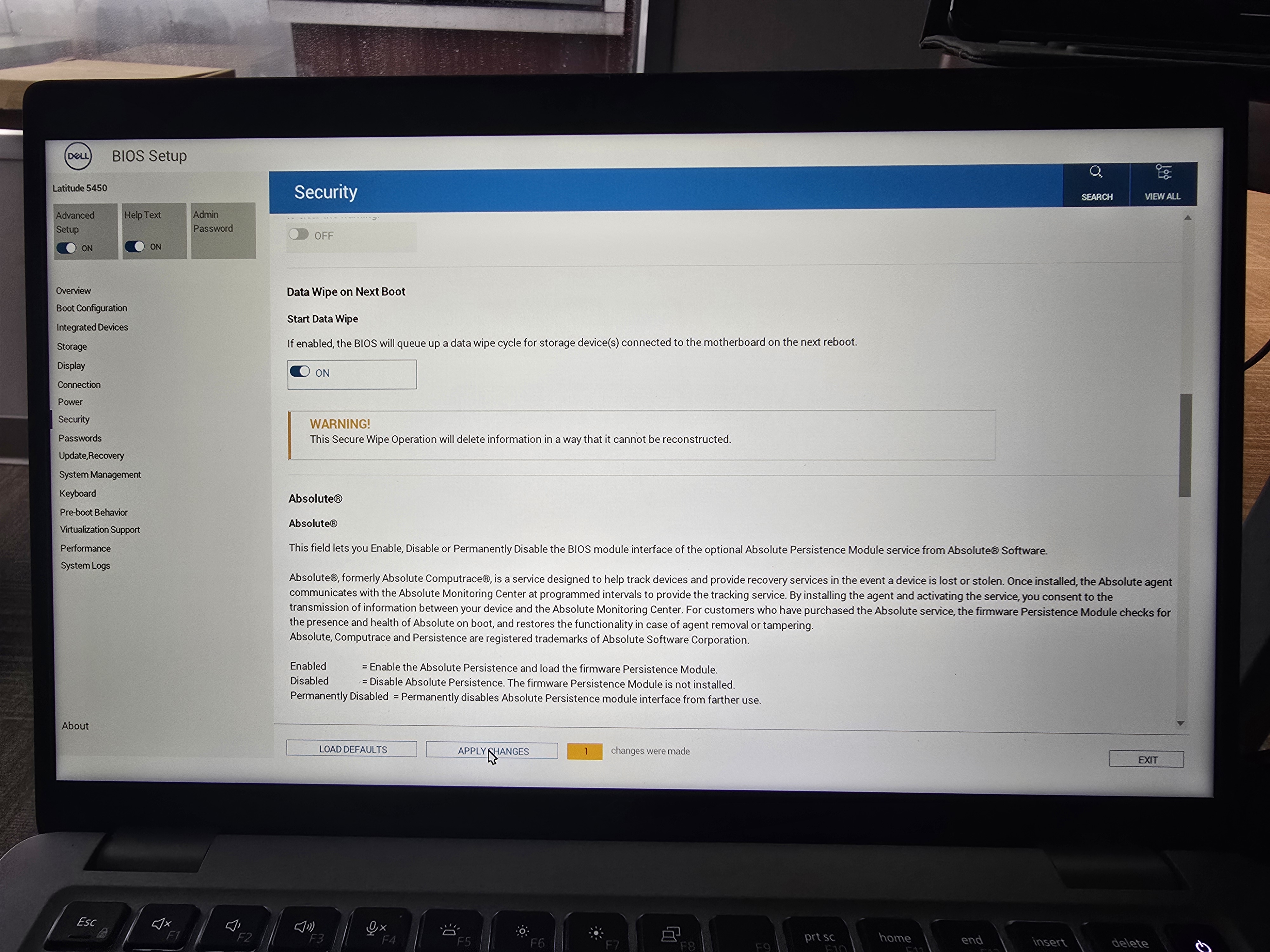
Confirmation 2: The Quickening
Yes, we would in fact like to apply the settings we've confirmed previously.
The system should reboot. If it doesn't, you can reboot it manually at this
point.
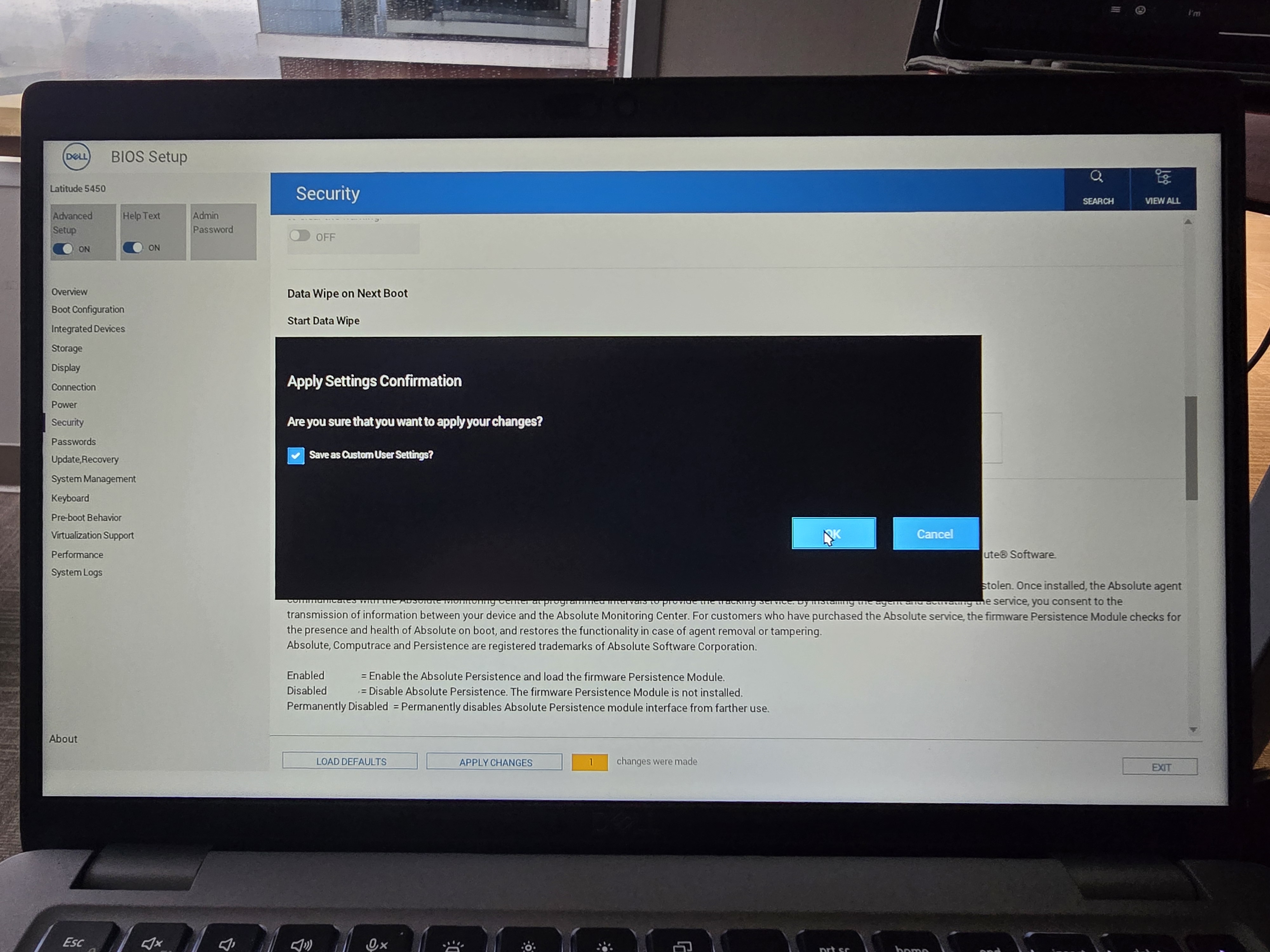
Confirmation 2: Electric Boogaloo
We've come this far, might as well continue....
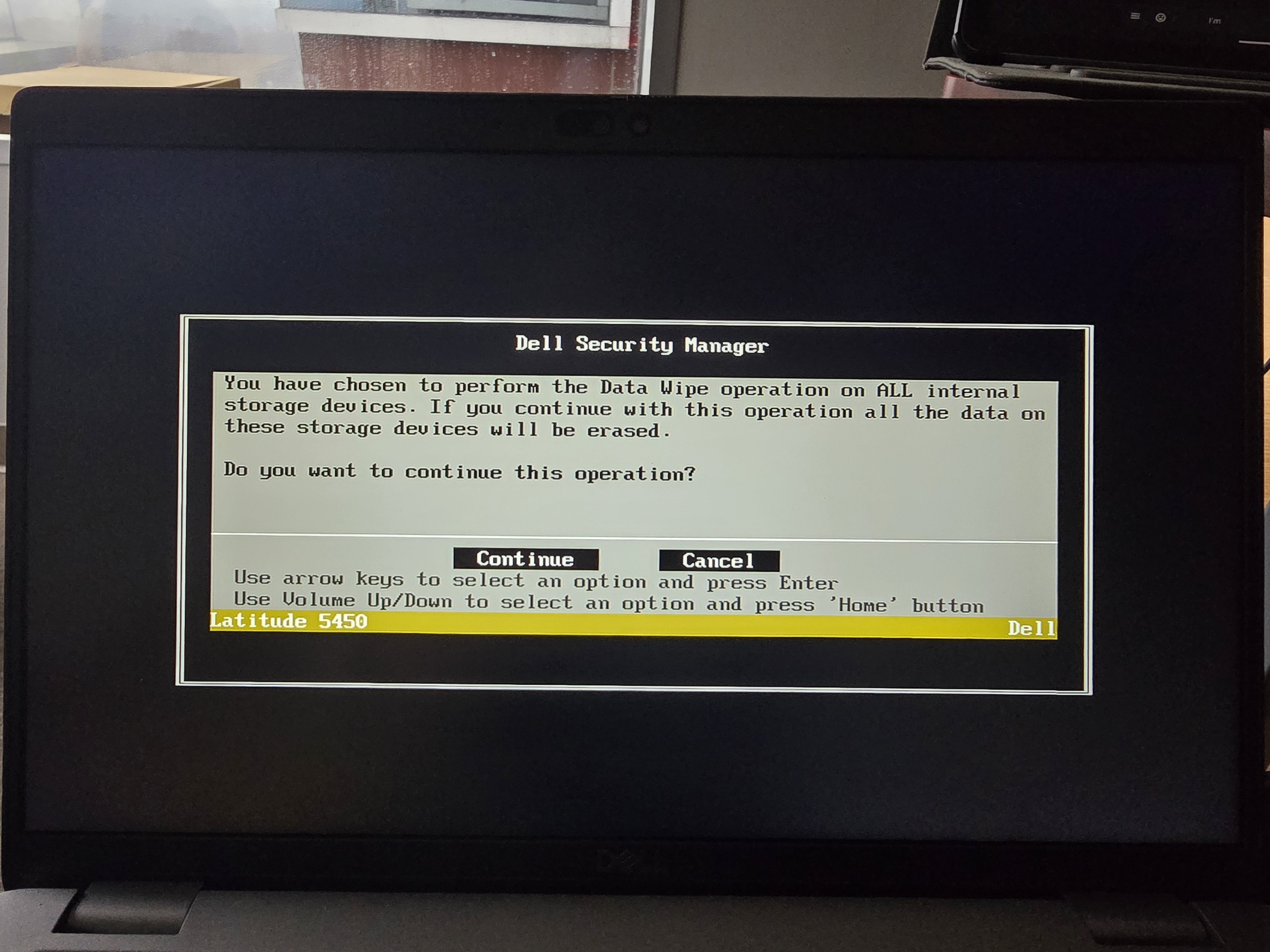
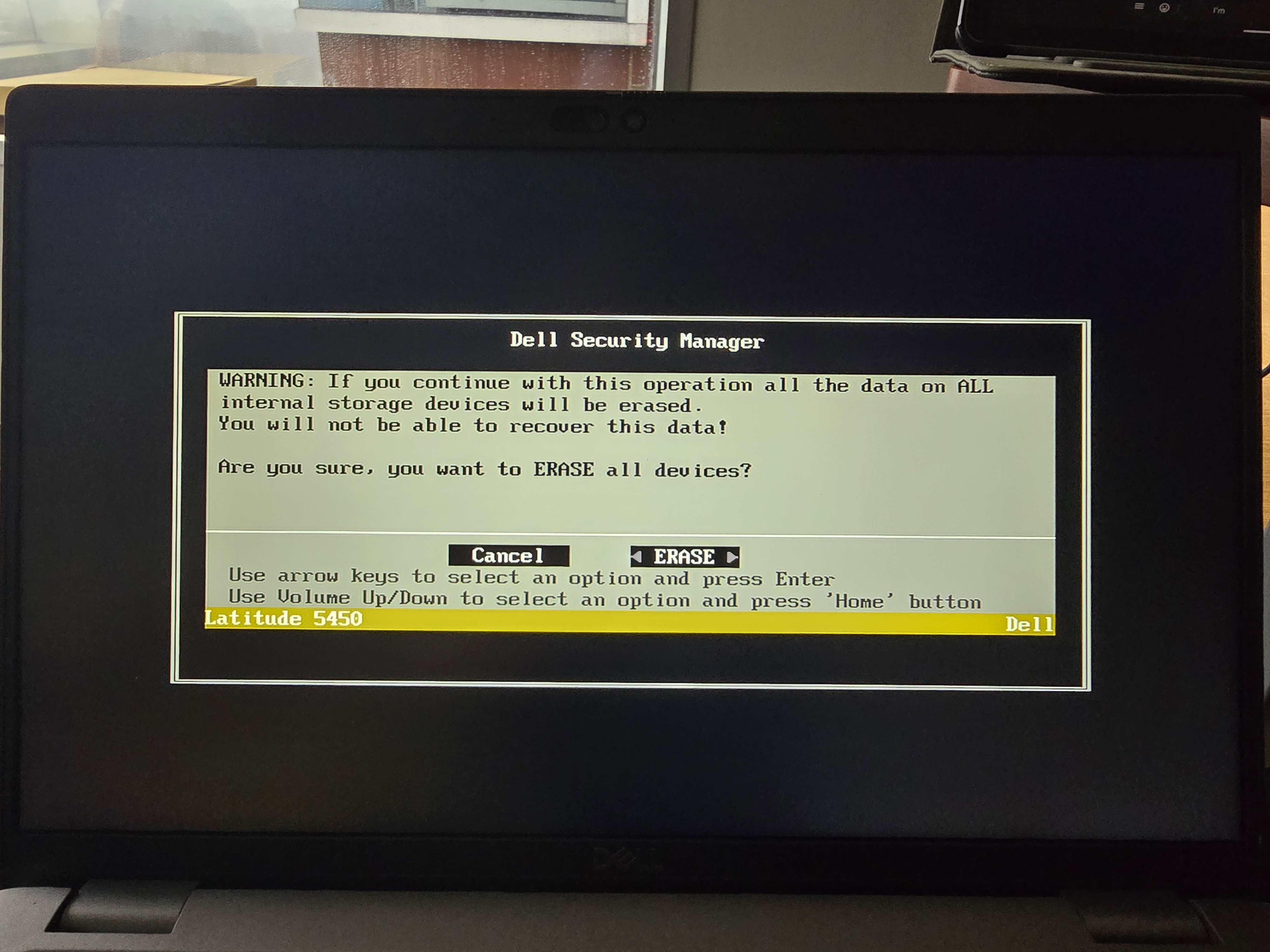
2 Confirmation 2 Furious
Have you seen enough confirmation screens? I have! Select ERASE and hit enter.
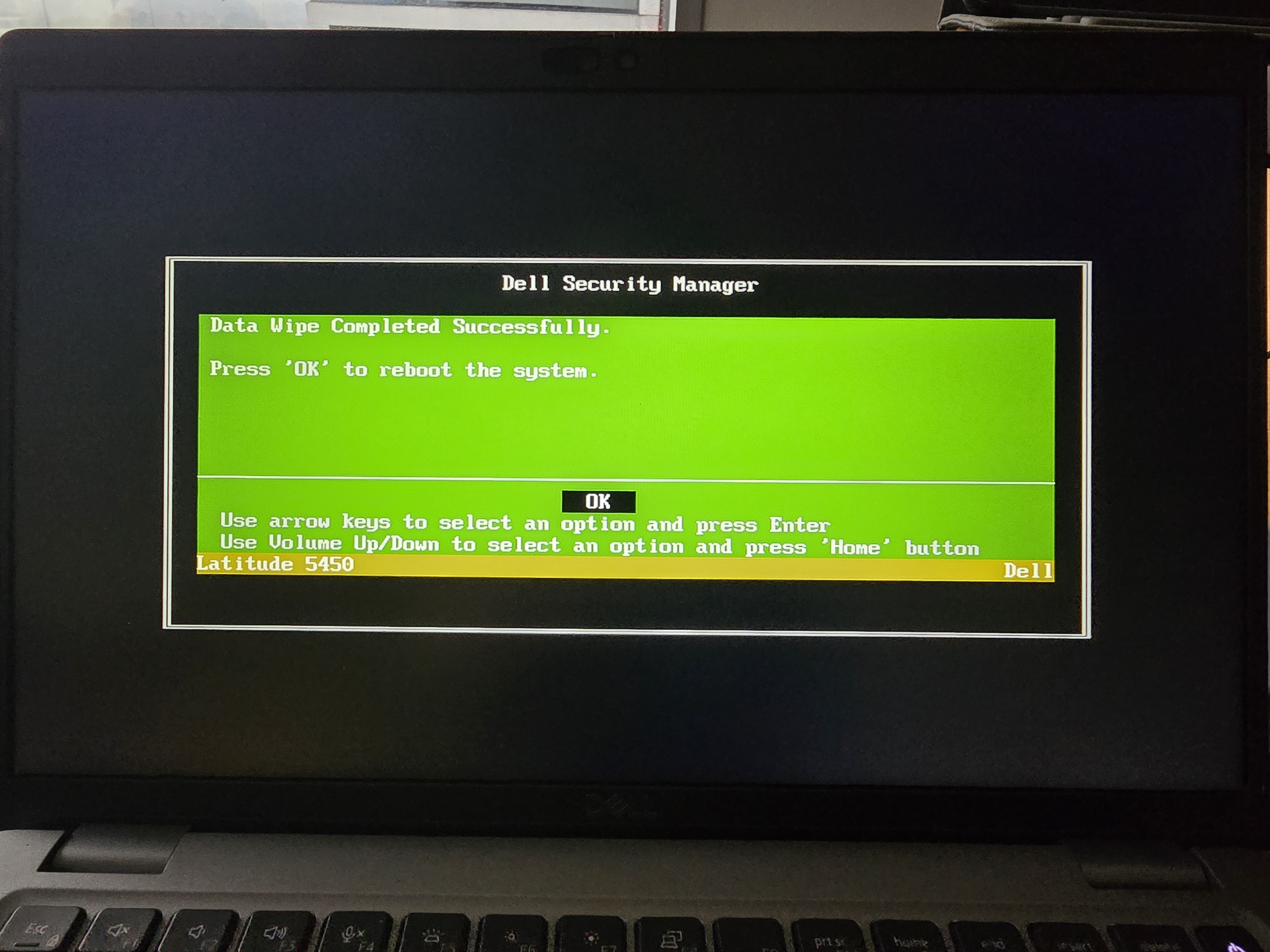
Success!
This should show you a success message. Take a picture of the screen and then let it reboot.
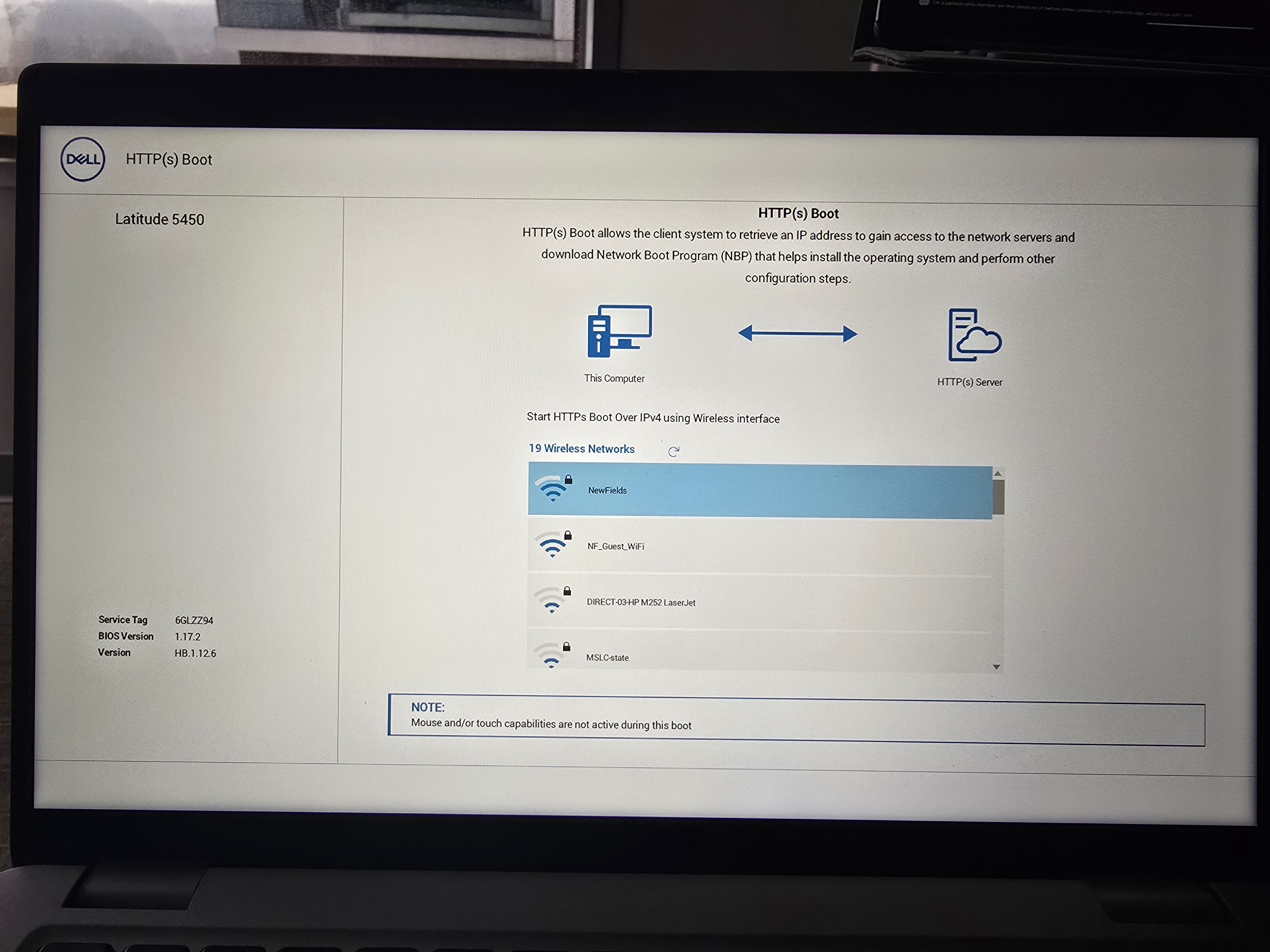
Introduction to Finality
Once the computer has booted, you should see this screen. Take a picture of
this screen as well, and then email both pictures to:
me
At last....
If you've made it this far, you should have a computer ready for a fresh
Windows install. Hopefully you already made your factory restore disk...